
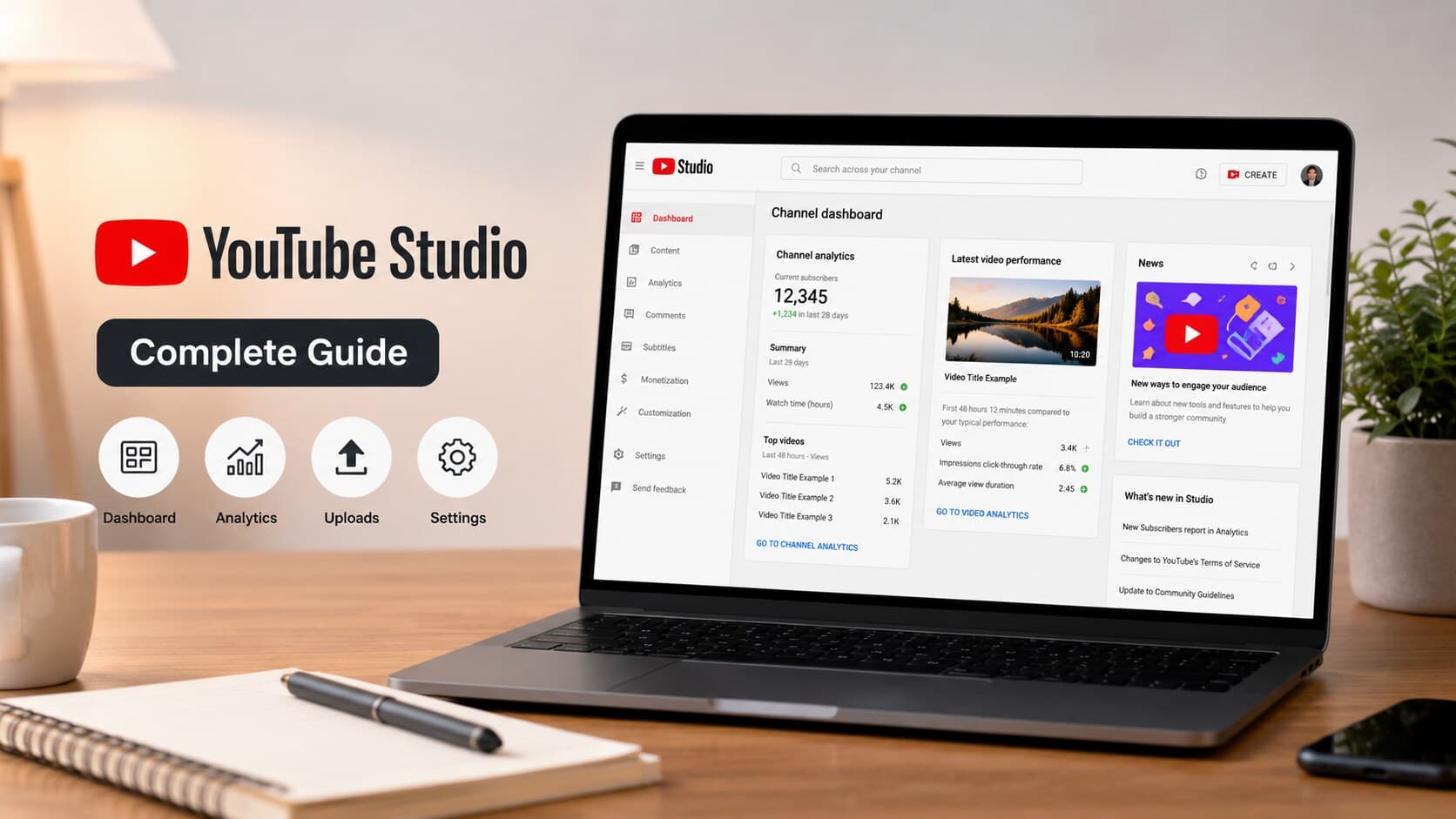
YouTube Studio is the free management platform used by all YouTube creators for uploading their videos, getting analytics, managing comments and creating a real business out of their channel. The software works both from the desktop and the YouTube mobile application, thus providing you with the possibility to check your analytics from any place you want. In this article, I will show you how to use your dashboard, how to upload videos, what analytics is and how to monetize your channel.
What Is YouTube Studio?
YouTube Studio is the backend platform behind any YouTube channel. Your public channel is the shop window and YouTube Studio is the office where you do everything your customers won't ever see. Here, you upload videos, add titles and descriptions, monitor your content performance, answer comments and manage your payments. The service was introduced by Google as an upgrade of the old "Creator Studio Classic" and has become a new home base for all YouTube publishers.
Why Every YouTube Creator Needs YouTube Studio
Without it, you can not run a professional channel at all. Each significant choice made by the YouTuber such as choosing a thumbnail or promoting a particular video is based on data found in YouTube Studio alone. Without it, you are simply guessing. But having YouTube Studio, you can easily find out what videos people pay their attention to, where the viewers leave the video, and which traffic sources really help to attract new subscribers. And, to your luck, it is the only place where you can apply for monetization, answer copyright claims, and deal with the legal part of the channel.
Key Benefits of Using YouTube Studio
- Unified interface for uploading, analytics, comment moderation, and monetization
- Live view counts and statistics of subscriptions
- Options for editing video info after upload, like title, tags, and thumbnails
- Copyright and Content ID notifications in order not to miss any issue
- Audience insight data revealing who your audience actually is
- Mobile version allowing you to moderate comments and check statistics on the go
How to Access YouTube Studio
YouTube Studio Login on Desktop
If you have the URL to log in to the YouTube studio, it will take seconds to access the YouTube studio. You can visit the URL studio.youtube.com and enter your Google account credentials that are connected to your YouTube channel. In case you have several channels with the same Google account, YouTube asks you which channel to access or you can toggle between channels with the help of the icon at the top of the page. After you login, you immediately see your dashboard with stats.
Using the YouTube Studio App
This app has all features that the computer-based YouTube studio has except for being mobile-friendly. In the app, you can view the live analytics of your videos, respond to comments, get notifications in case your videos violate copyrights and upload short clips directly from your camera roll. It was designed specially for people who do not need to be always sitting at a desk to look after their channel.
YouTube Studio Download for Android and iPhone
It can be downloaded for free from both Google Play Store and the Apple App Store. Type 'YouTube Studio' in the search bar and download it onto your phone. Make sure to log in using your Google account used for your YouTube channel. Next, enable push notifications to be notified whenever a video is flagged, your comments need moderating, or when you hit a new milestone in subscribers. Many creators like keeping this app on their phones side-by-side with the YouTube app.
Understanding the YouTube Studio Dashboard
Dashboard Overview
The first screen you see after logging into the app is your dashboard. This screen gives you an overview of your channel's performance at one glance. Your subscriber count will be shown along with your recent video performance. Moreover, any urgent issue which needs your immediate attention like copyright claims and user-flagged comments will also be mentioned here. It consolidates all information regarding your channel from various sections of the app in one place.
Recent Channel Performance
Immediately beneath the overview, the YouTube Studio will display a performance summary of your most recent video against your typical metrics on the channel. You’ll be shown the number of views, watch time and click through rate for your most recent upload as well as a brief comparison with the other videos that you have uploaded recently. This helps determine right away if your video is trending or not since the first few moments of its release can influence how YouTube will push the video around its recommendation system.
Latest Comments and Notifications
Your dashboard will also show you the most recent comments that you should reply to, something that the YouTube algorithm rewards. With the comments will be any notification regarding copyright matches, community guideline violations or changes in policies that could affect your uploads.
Quick Actions for Creators
- Upload a new video right from the dashboard
- Navigate immediately to the analytics of your channel
- Respond to comments while on the home page
- See any copyright or Content ID claim
- View subscriber and view trends
Uploading and Managing Videos in YouTube Studio
Uploading Videos Step by Step
It takes only several steps to upload videos. The user needs to click the "Create" button in the top-right corner, click "Upload videos" and select his file. Then the user needs to follow instructions of the website in order to enter more information about his video, specify its visibility settings, and let the platform process the video. Rendering time depends on the duration and resolution of the video, and high-quality versions will render several minutes after the initial upload is finished. It is possible to publish videos instantly, schedule them for a later date, or to save them as a draft while finishing all necessary work with the video.
Editing Titles, Descriptions, and Tags
After publication of the video, it is possible to return and edit almost any element of it. The user needs to open the video from the Content tab and then he will see such elements as Title, Description, Tags and Category of the video. There he also needs to add Cards, End Screen and select the appropriate Playlist.
Creating Custom Thumbnails
It is not enough to make good videos, but thumbnails play an equally important role, even more than videos sometimes, as this is what people will see first when deciding whether to click on your video. In order to upload your custom image, YouTube Studio offers the possibility to do so after verifying your channel using a verified phone number. Good thumbnails should be simple and recognizable for your subscribers in order to get their attention.
Managing Playlists and Content
YouTube Studio’s Content tab not only works as your video library by showing all your uploads, along with their visibility, restrictions, and performance in one place. But it also gives an opportunity to edit several videos at once, sort videos by different parameters, and create playlists. Playlists deserve your attention, as they increase watch time for users and this is one of the key factors when it comes to recommendations on YouTube.
YouTube Studio Analytics Explained
Audience Analytics
Audience analytics show demographic data about your audience – their age group, gender, geographical location, and the times of day when they are most active on YouTube. All this information is really helpful when scheduling the posting time and creating content that will attract the people who already follow your channel.
Reach and Impressions
This part provides information about the number of people who saw the thumbnail image of your video (impressions) and about the ratio of those who decided to watch it (click-through rate). It also gives information about the sources of your traffic – from YouTube search, suggested videos, external websites, or browsing features. Low click-through rate among good impressions means that either your thumbnail or video title require some improvements.
Engagement Metrics
Watch time, average view duration, likes, comments, and shares – these metrics define engagement. It means that along with knowing whether people watched your video or not, you can see whether they were interested in it enough to watch it till the end.
Revenue Analytics
With monetized channels, this page gives details on projected earnings broken down by videos, daily and revenue sources that include ads, members, and Super Chat contributions. This is the first page that most creators go to when they have been making money from their channels.
Using Analytics to Grow Your Channel
- Look at your top and bottom-performing videos to see trends
- See where viewer retention drops in your videos' analytics graphs
- Identify the traffic source that brings the most engaged viewers
- Don’t think a certain topic doesn't work without checking the CTR
- Monitor watch time on a monthly basis instead of individually
Best YouTube Studio Features Every Creator Should Use
Content Management Tools
Apart from editing videos, YouTube Studio also helps you manage your whole content library through various features.
Comment Moderation
With the Comments tab, you can moderate, approve, hide, or pin comments and even set filters for holding certain comments for review using keywords. Furthermore, you can block users that tend to spam and thereby make your community section useful when the number of viewers grows.
Copyright and Content ID
When there is copyrighted music or any other content used in your video, YouTube Studio will notify you about it and will suggest your actions, either to dispute the claim, mute the audio or accept it and allow the copyright owner to make money from this part of the content.
Live Streaming Tools
YouTube Studio will help you to create your live streams. There are features like stream keys, scheduling and monetizing your broadcasts. Just as you did with usual videos, you can also analyze your live stream statistics.
Community Management Features
In the Community tab, you can publish polls, pictures, and text updates to reach out to your subscribers via their feed.
YouTube Studio Monetization Guide
Eligibility Requirements
In order to qualify for the YouTube Partner Program, your channel should have 500 subscribers, three public uploads within the last 90 days, as well as 3,000 watch hours or 3 million Shorts watch hours in the last 12 months or 90 days respectively. You should also comply with YouTube monetization policies.
Monetization Settings
If you get approved, move on to the Monetization tab to activate advertising, set up your preferences for what kind of advertising appears on your videos, as well as activate other sources of income such as channel membership and Super Thanks. You will be able to adjust monetization settings on a per-video basis.
Revenue Sources in YouTube Studio
- Display, skippable and non-skippable ads income
- Customized channel members' privileges for subscribers
- Super Chat and Super Stickers during live broadcasts
- Super Thanks for regular videos
- YouTube Premium income share based on watch time
Common Monetization Issues
Almost all monetization issues revolve around either copyright claims, used content or ad-unsafe language identified by the YouTube automatic system. By checking your Monetization tab periodically, you will be able to identify a demonetized video promptly, file a manual appeal, and avoid the loss of several weeks' worth of income while your video remains unmonetized.
YouTube Studio Settings You Should Configure
Channel Settings
The basic information about your channel such as default upload location, keywords, and public display of the subscriber count can be found in Settings. It makes sense to check it out during setup and each time you change the branding of the channel.
Upload Defaults
Default titles, description, tags, and privacy settings for the uploads can be set up here in order not to spend time on filling it out for each uploaded video.
Permissions and Access Management
If you collaborate with other people like editors and have a team of them, you may give them access to the account with certain permissions starting from full access and ending with analytics viewing rights.
Notification Preferences
Select those notifications you truly care about: subscriber count, copyright strikes, mentions on comments. Reducing the number of notifications will help you avoid being overwhelmed by notifications as you grow.
Tips to Grow Faster with YouTube Studio
Improve Click-Through Rate
Your title and thumbnail work hard even before someone starts watching your video. Experiment with different types of thumbnails, create descriptive titles without exaggeration, and track click-through rate weekly.
Increase Watch Time
Design your videos to start off with a bang – first fifteen seconds must meet the promises made in your title. Eliminate slow introductions, introduce some elements of surprise in order to grab attention, and check out the audience retention chart to figure out when people tend to drop off.
Optimize Video SEO
Add the main keyword naturally to the title, description, and tags of your video. Write descriptive and relevant descriptions instead of keyword-packed descriptions – YouTube favors the content that matches the viewer's intent.
Track Performance with Analytics
- Look at the stats each week rather than focusing on daily peaks
- Compare videos based on similar topics or formats
- Be aware of seasonality in your particular niche
- Take note of the time of uploads that receive quickest engagements
- Use the compare option to assess previous uploads
Learn from Audience Insights
Don’t just focus on demographic information in your audience tab. Be aware of when your viewers are active, which other channels they follow, and how did they find you. This information will determine your content calendar and posting time.
Conclusion
YouTube Studio is not merely a platform for video uploading but the control room for ensuring how successful your channel is going to be. After familiarizing yourself with the dashboard, learning about analytics, and setting up all the options correctly, you will no longer be guessing anything and will make decisions based on facts. Regardless of whether you have just created your channel or have monetization already, it’s spending time within YouTube Studio, looking at the retention rate, trying out different thumbnails, answering viewers’ comments, and checking the revenue that will distinguish successful from unsuccessful channels. Make studio.youtube.com your favorite web page, install the mobile app, and make it a regular part of your weekly routine.
FAQ’s
1.What is YouTube Studio used for?
YouTube Studio can be used by creators to perform all the management activities of their channel from one single dashboard. The functions include uploading of videos, editing, adding titles and descriptions, creating thumbnails, monitoring analytics, commenting moderation, dealing with copyright issues, and managing the process of monetization. In essence, it’s the control center of every channel which gives creators all that they need in order to grow without any need of coding or any external analytics dashboard.
2.Is YouTube Studio free?
YouTube Studio is entirely free to anyone with a YouTube channel. There is no cost involved for using the dashboard, uploading videos, and analyzing them. The tools and services such as the live streaming, Content ID test, and monetization services are free of charge too. YouTube makes money by earning revenue share from ads when you monetize your YouTube channel.
3.Can I use YouTube Studio on mobile?
Yes, there is an application of YouTube Studio that is created for the use on mobile operating systems like iOS and Android. YouTube Studio app has all necessary functions that are used from computer desktop including live statistics and analytics, comments moderation, and uploading of short videos to channel. This application is very useful in order to control video performance and manage its comments immediately.
4.How do I access YouTube Studio analytics?
At first, you should access YouTube Studio either by studio.youtube.com website or by YouTube Studio app and then choose the Analytics tab on the left panel. Then, you will see the information divided into four sections: Overview, Reach, Engagement, and Audience. All information is filtered depending on the time period and videos you choose. The data are updated right away, although detailed statistics are available in 24-48 hours.
5.How do I enable monetization in YouTube Studio?
Access the Monetization section in YouTube Studio and find out your eligibility. If you have met the requirements concerning your subscribers and watch time, apply to become a part of the YouTube Partner Program. After your application gets approved, the platform will review your channel for the policy compliance within several days or weeks. After that, you will be able to monetize your channel right there in the same section.
6.What is the difference between YouTube and YouTube Studio?
YouTube is a platform that allows viewing, searching and watching videos. On the other hand, YouTube Studio is a private tool where the video owner manages his/her channel and uploads videos while tracking performance data of these videos. In brief, YouTube is the frontend while YouTube Studio is the backend of the platform.